Just a quickie… FCP X 10.1.4 has been released. Mostly a maintenance release, but also adds native MXF import/export, which is a pretty big deal for broadcast work. Enjoy!
FCP X
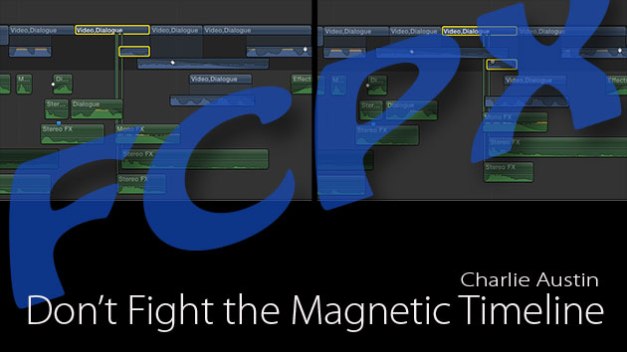
I just had an article posted on the Creative Cow website. It’s basically an updated, and slightly less confusing version of my “Magnetic Timeline” posts. Check it out here. I hope they don’t mind me stealing this picture because, ya know, every post needs a picture right??
Maybe everyone knows this, I didn’t, mainly because I use connected clips, not secondaries, I don’t use audio dissolves much, and if I cut audio in a secondary the stock centered transition works fine most of the time. But, I discovered a little trick to have a nice A/B crossfade and use a transition to create the handles for you, and give you a “thumb” to move the cut point around.
Cut your audio in a secondary and stick a dissolve on the cut. The length doesn’t matter, it will just be a drag handle when you’re done – Then, just expand the audio and adjust/trim the A/B sides and fade handles as you normally would.
It’s really the same as if you just did it without the dissolve, except… you can now select the transition to adjust position of the expanded edit point using the <> + Shift (if needed) keys. Be aware, when it’s expanded, dragging the transition doesn’t move the cut, but when you collapse the audio, you can click and drag the transition and it moves he A/B handles/fades with it. Useful?
EDIT: The dissolve doesn’t do anything once you adjust the A/B handles, and you can pretty much do the same thing by selecting and dragging the edit point. What it does so is create some handles for you, and let you drag the edit point without changing tools. Saves a couple keystrokes and clicks… 🙂
So, in lieu of any actual content here lately, I have a little effect if anyone wants it. There’s no “strobe” effect in FCP X, so I made one. It just freezes a set amount of frames for a jerky playback. Cheesy, but maybe useful? You can roll your own in Motion, but if you’re lazy, here ya go:
Unzip the file and stick the whole folder in your Movies>Motion Templates>Effects folder. You can make a sub folder in the Effects folder called “Custom” or something first, then put this Strobe folder in it so it’ll sort nicely.
The “mix” slider adjusts the uh… mix 😉 and the “amount” slider adjusts the percentage of the original that plays. 0 just freezes the first frame, and 100 plays the clip with no strobing.
One of these days I’ll add something useful here again, but until then… this is your consolation prize. 🙂 Happy editing!
Another quickie… You’re probably familiar with Slice-X with Mocha from CoreMelt. If you’re not, you really should be. Mocha powered Planar Tracking for FCPX. Rotoscoping, rig and object removal, and more, without ever leaving the app.
Well, they’ve just announced a new, related Plugin called Track X. It’s currently in beta, but soon you’ll also be able to track graphics and text in FCPX. No need for round tripping anymore, you can do it all in the FCPX viewer. Uses the same Mocha engine as Slice X. It look really nice, and really easy. A demo video is posted here.
No pricing yet but, like Slice X, I’m sure it’ll be worth every penny. OK… Back to waiting for the FCPX update… tick-tock….

While we wait patiently for The Mac Pro Tube and the next revision to FCPX , I thought I’d post this. It’s been kicking around for a month or so but it’s worth a repost. A screen grab time-lapse of Editor Jesse Jokela cutting a Finnish reality show, Beyond Human Boundaries, in FCPX. Apparently, he didn’t get the memo that nobody uses FCPX. Shot on a Canon 5DMarkIII, The show was cut in FCPX and graded in Resolve Lite. This particular episode was also mixed in FCPX 10.0.9. I guess you can do audio in FCPX too. What a surprise!
Seasons 1&2 of the show have been hugely successful in Finland, and have also been broadcast in over 130 countries worldwide (through Discovery and BBC). They are working on English dubbed versions now for wider distribution. Jesse says he made the time lapse for himself “…and to give a glimpse to an outsider of how much goes into editing an episode of tv.” I suggest watching the time-lapse full screen in 1080p. It’s pretty cool, even for a jaded editor like me. 😉
And here’s a trailer, in Finnish, for the series.
What follows is mainly directed at folks who cut in FCP “classic”. It also assumes you either have not used FCP X, or have tried it at some point in the past, stared at it in confusion, and given up. Finally, it assumes that you cut “professionally” and know what you’re doing.
Anyway, first thing you need to do when you open FCP X is . . . forget everything you know. Not about the actual creative process of editing, but the technical process that your brain and muscles have memorized over the years. Tracks, Bins, Subclips, etc. It’s all there but it’s. . . different. X does all the same stuff, some of it better, but it ain’t the same. If you have this attitude:
“I’ve been cutting 40 hours a week for over a decade and I know what I’m doing so just show me how to set I/O’ points and cut clips in and I’m good to go. I can figure the rest out”
. . . you might as well stop now. You’re gonna get confused and annoyed, give up, and become part of the FCPX is no good chorus. You can’t just figure it out without help. You know too much. Trust me on this one. This tip brings me to the first thing you need. Tutorials. Macprovideo, Ripple Training, Lynda, YouTube, there are a million of ’em. Get one. Also, get the GEM manuals here. They’re really inexpensive, and really good. Spend a little time to understand the X workflow, especially the project timeline, before you even launch the app. You’ll spend less time swearing at it. After you’ve gotten a basic understanding of FCP X, Here are a couple other timeline tips/ways of looking at things that might make the transition a little easier. . .
–Forget tracks ever existed. X is clip based. No more patching or track tetris.
-The Skimmer will drive you nuts. Use it. Especially Clip skimming. Don’t fight it, it’s really great once you get used to it.
–The Magnetic Timeline will drive you nuts. Just go with it, you’ll get used to it too, and figure out how to control it. Then you’ll wonder how you ever cut in a “normal” timeline.
–Sync Audio rides with the video, if you have a multichannel source just cut it all in, you can disable/enable the channels later if you need to. If you need to move the audio to cheat dialog or something you can detach it, or expand it in place to edit individual channels. It’s really nice.
–Assign Roles to everything as you import it. Video, Dialog, Music, Effects are in the default list, you can make as many as you need. You can do it at any time, but it’s best to assign Roles to Master clips. You can assign Roles to multichannel sources by opening them in a timeline. Proper assignment of Roles is easy, and really important!
–Everything sticks to whatever it’s connected to in the Primary Storyline and….
–The Primary Storyline works like Media Composer in ripple mode. Gap, the stuff between noncontiguous clips, is treated like media, even though it isn’t. In some ways, the X timeline is easier to “get” if you have some MC experience.
-The Position Tool is your friend. It lets you move stuff around in the primary without Rippling everything.
-The tilde key (~) is your friend too. It overrides clip connections when held down. Also, something you won’t find in the manual… If you press ~ and then SHIFT and release the keys, it locks the override until you hit ~ again. Useful!
–You can work like FCP 7 if you cut in everything as connected clips. You’ll need to make secondaries or move clips to the Primary if you want to add transitions, but it’s great to be able to rough out chunks as connected clips, and then dump each section into the primary once it’s kind of where you want. Popping in and out of the Primary is kind of like having Media Composer and FCP 7/Pr all in one.
–Secondary Storylines are invaluable for things like music beds made from cut up clips that you want to keep together, or may not want to them to move when you move a chunk of video and the clips connected to it. Put these clips in secondaries connected to the Primary at the head of the timeline and they function more or less like tracks used to.
–The timeline index is really useful. Assuming you’ve assigned Roles properly, you can do things like mute, solo, select all clips for particular Roles. And more…
**Edit: 12/21/13 As of FCP 10.1 -The ancient Project Library/Event workflow is gone. It was confusing as hell, and has changed. Ignore anything you hear or read about it. 😉
-Libraries are (kinda) the new Projects They hold a collection of Events and (FCP X) Projects
-Events are (kinda) the new Bins.
–Keyword Collections are the new Folders (though there are still actual folders), Smart Collections are super Folders. 😉
–Projects are the new Sequence
I could prattle on forever, but that’s a start. If you need to move back and forth from X to FCP 7 and/or Premiere, you absolutely can. Easily. 7toX is $10, Xto7 is $50. They work really well, so you have a safety net if you need it. Great to have when you’re just diving in or need to swap stuff with folks on other NLE’s. Getting in and out of MC is do-able, but’s it’s unfortunately a PITA.
You’ve also probably heard that X can’t export OMF’s, EDL’s, Change lists, and other esoteric things that “pro’s” need. And in the app itself, this is technically true. But, believe it or not, not everybody needs this stuff, just like not everybody cutting in FCP 7 needed AAF’s. Remember Automatic Duck? Remember how much it used to cost? Well, If you’re using X and you need these features (I do) for about the same price you can do all those things and more. Smoke and Resolve currently open fcpxml files with no translation, but to talk to other post workflows here’s a little list of the basic stuff you’ll want:
Compressor– $50 – X has a subset of compressor built into it, but for all the random export formats we need, get this. Make presets in compressor, access them from X without switching apps.
Motion– $50 – Open and tweak 90% of X’s built in effects. Make your own effects, generators and lot’s, lot’s more. Get it.
X2Pro – $149 -Makes ProTools (and other DAW) compatible AAF’s. Set your Roles properly and it’ll create a perfectly split out session with 1 or 2 clicks. It’s awesome.
EDL-X – $99 – Generates CMX 3600 EDL’s. Also you can edit the source table, and any markers you add to your sequence will show as comments in the EDL.
Clip Exporter – Free – delivers your entire timeline to After Effects or batch exports selected clips as Quicktime movies or Nuke files.
Resolve Lite – Free – Pretty much the same as the full version but only up to 2k resolution.
That pretty much takes care of the basic post needs and more for $350. Auto duck was $495 before it got EOL’d, so we’ve still got $145 to play with right? So…
Get Slice-X with Mocha for $99. In app Planar Tracking. It’s freaking amazing. Save the rest of your $ to put toward this. It’s in Beta testing now but allows for full 3D .obj files and texture maps, up to 8K in size. Sort of like Element3D inside FCP X.
OK, I really will stop now. But that’s just scratching the surface. Google will find you pretty much anything else you can imagine. Have fun….
Hi there. This is a little blog about FCP X. “The internet is full of blogs about FCP X” you say. “Why bother?” Well, I just thought I’d add my opinions and experiences to the 800 billion others out there. Also, I am selfish. I Like FCP X 😛
Quick Links: FCP X Essentials | FCP X Versioning Workflow | FCP X Naming (Opinion)
Looking for crap to download? Shortcuts to the vast collection of GeekCo.® free stuff:
Slate/Smoke/MPAA Bands/Bars
Strobe | Role-O-Matic (deprecated)| Share-O-Matic | Letter A | Better Basic 3D
 Final Cut Pro X Babbling